

Migrating from Smart Commits for Bitbucket Data Center?
Some features work differently in Bitbucket Cloud, and a few are not supported yet (e.g. time tracking with #time). See Differences to Data Center for details.
If your workspace also uses Jira's built-in Smart Commits, commands like #comment or transitions may be executed twice.
What is the Smart Commits for Bitbucket Cloud Plugin?
Smart Commits allows users over commits to execute special actions during the development. Each commit can define one or more special actions. This actions will be executed if the change sets will be pushed to the remote repository, which is located in Bitbucket. After the change sets has been received in Bitbucket, Bitbucket will parse the change-sets regarding some special keywords and related parameters. If the parser will find a valid key and parameters, the corresponding action will be executed. Actions can relate to all Atlasssian products like JIRA or Bitbucket.
Supported Action
|
Action |
Application |
Description |
|---|---|---|
|
Comment |
JIRA+Bitbucket |
A comment can be created for JIRA or for Bitbucket with the keyword #comment. This keyword will create a comment to all related pull requests and additionally to issues. For creating issue comments the commit must be start with a sequence of valid JIRA issue references. The author of the Jira comment will be the account of the Jira connection, the author of the Bitbucket comment will be the Smart Commits app. The date of the comment will be the date of the push action. |
|
JIRA+Bitbucket |
The #comment keyword will create comments on JIRA issues and on Bitbucket pull requests. Sometimes it is needed to create only Bitbucket or only JIRA comments.
|
|
|
Add reviewer |
Bitbucket |
If the changes are related to a pull-requests, it is possible to add reviewers to the pull-requests. With the magic keywords #reviewer @user it is possible to add the "user" to a existing pull request (the from branch needs to be the same branch as the branch you will push to remote) |
|
Transition |
JIRA |
This command transitions an issue to a particular workflow state. If a commit message contains a hashtag together with a valid transition name (e.g. #close), the smart commits action will be trigged and the issue will be moved to the next status. The transition name needs to be unique and fully qualified. See syntax examples. |
|
Create Pull Request |
Bitbucket |
A a pull-request can be created via the keyword #pull. The pull command needs as parameter the target branch. If the command and a valid target branch is given, the hook will create a pull request (from: the branch which will be pushed - to: the branch, which is available via parameter). The pull request will be created by the Smart Commits app. |
|
Change assignee |
JIRA |
During the workflow of an issue it is maybe needed to move the issue to a different assignee (e.g. development done, needs testing → assign test user) Via the action #assignee it is possible to change the assignee to the issue. |
|
Set priority |
JIRA |
During the implementation of an issue, maybe you will discover, that the issue priority is not correct. In this case the Smart Commits Plugin allows you to change the prioritisation of the issue with the key word #prio (e.g. #prio major) |
|
Set/Add fixed version |
JIRA |
During the implementation of an issue, you made need to add or set the fixed version of the issue. The key #fixedVersion or #fixVersion allows you to add or set a version to the issue (e.g. #fixVersion+=1.0.0) |
|
Set/Add affected version |
JIRA |
During the implementation of an issue, you made need to add or set the affected version of the issue. The key #affectedVersion allows you to add or set a version to the issue (e.g. #affectedVersion+=1.0.0) |
|
Set/Add components |
JIRA |
During the implementation of an issue, you made need to add or set the components of the issue. The key #component allows you to add or set a existing component to the issue (e.g. #component+=frontend) |
|
Set/Add labels |
JIRA |
During the implementation of an issue, you made need to add or set the labels of the issue. The key #label allows you to add or set a existing component to the issue (e.g. #label+=need-investigation) |
|
Add tasks |
Bitbucket |
During the implementation of an issue, you maybe know things the reviewer should be respect during the review (Maybe he/she should double check a special code change) For this you have the key word #task. With this keyword you can add a task to a pull-request. (#task please double check class xyz) |
|
Remaining effort |
JIRA |
When you implement an issue, you know best how long it will take to complete the issue. So you can also set the remaining time to the normal time bookings. With the keyword #remain you can set the remaining effort of an issue. (#remain 1d) |
Syntax
Basic JIRA syntax
The basic syntax for JIRA commands is the following:
<ISSUE_KEY> <ACTION> <COMMAND_PARAMETERS> ;
or
<ISSUE_KEY> <ACTION> <ACTION> <COMMAND_PARAMETERS> <ACTION> ;
Each Jira action segment must start with one or more valid issue keys, placed before any action keyword. Text before the first issue key, or after a ; and before the next issue key, is ignored for Jira actions. Bitbucket-only actions (e.g. #comment @stash, #pull, #reviewer, #task) do not need an issue key.
If you include the following text in your commit message, Bitbucket will record 2 days and 5 hours of remaining work against issues TEST-1 and TEST-2. As you can see, you can also enter a list of issue keys. The defined actions will be executed for both issue keys.
Example:
TEST-1 TEST-2 #remain 2d 5h ;
Also it is possible to define a action context with a semicolon. With a semicolon you can define different actions for different JIRA issues. If you include the following text in your commit message, the plugin will record 2 days and 5 hours of remaining work against the issue TEST-1 and TEST-2. Additionally Bitbucket will record 3 days to the issues TEST-3 and TEST-4. If there is no semicolon the complete commit message after the first issue keys will be parsed as one action context. In that case the second command regarding TEST-3 and TEST-4 will be ignored. A semicolon is recommended anyway.
Example:
TEST-1 TEST-2 #remain 2d 5h ;
TEST-3 TEST-4 #remain 3d ;
Also please note that commit actions can span more than one lines
Example:
TEST-1 #comment this is a comment
 over two lines ;
Syntax of actions
|
Action |
Syntax |
Example |
Description |
|---|---|---|---|
|
Comment |
#comment <text> or #comment @jira @stash<text> |
#comment This is my first example comment |
Creates a comment to JIRA issues and Pull requests |
|
|
#comment @jira |
#comment @jira This is my first example comment (only for Jira) |
Creates a comment to JIRA issues and *not* to Pull requests |
|
|
#comment @stash |
#comment @stash This is my first example comment (only for Bitbucket) |
Creates a comment to Bitbucket pull requests and *not* to JIRA issues |
|
Add Reviewer |
#reviewer @<username1> @<username2> |
#reviewer @user1 @user2 |
Condition: Pull request must be available Add the user1 and user2 to related and open pull-requests |
|
Execute transition |
#<transition-name> |
#start-progress #stop-progress #resolve |
Triggers the given transition |
|
Create pull-request |
#pull <brach-name> |
#pull master |
Creates a pull request from the current branch into the master branch |
|
Assignee |
#assignee=<display name or email> |
#assignee=admin |
Changes the assignee to the user admin |
|
Set priority |
#prio=<prioritization>
|
#prio=Major
|
Set prioritization "Major" to the issue TEST-1.
Blanks in the prioritization needs to be replaces with a minus "-" |
|
Set/Add labels |
#label+=<label-name> #label=<label-name> |
|
|
|
Set/Add components |
#component=<component-name> #component+=<component-name> |
|
Condition: Component must be available
|
|
Set/Add affected version |
#affectedVersion+=<version> #affectedVersion=<version> |
|
Condition: Version must be available
|
|
Set/Add fixed version |
#fixVersion+=<version> #fixVersion=<version> |
|
Condition: Version must be available
|
|
Set remaining effort |
#remain <time> |
#remain 1w 1d |
Condition: The value must be in the edit screen of the issue It will set the remaining effort of a issue to 1 week and 1 day |
|
Add task |
#task <task content><newline> |
#task my new task #task my second task |
Condition: Pull request must be available Add two tasks to the pull requests |
Commit Examples
|
|
Commit message |
Result |
|---|---|---|
Comment for JIRA and Bitbucket
|
|
|
Multiple Issue actions 1
|
|
|
Multiple Issue actions 2
|
|
|
Additional Bitbucket comment
|
|
|
Add reviewer
|
|
|
|
Execute transition |
|
|
|
Create Pull-Request |
|
|
|
Create task |
|
|
|
Remaining time |
|
|
Configuration
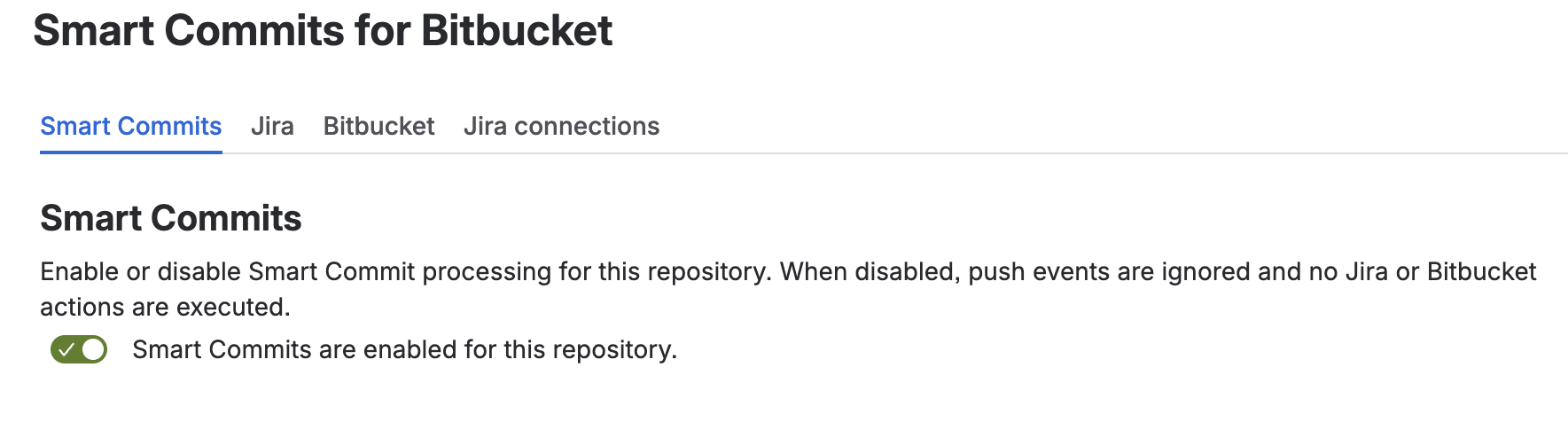
The Smart Commits app can be configured in the app settings of the workspace, projects and/or repositories
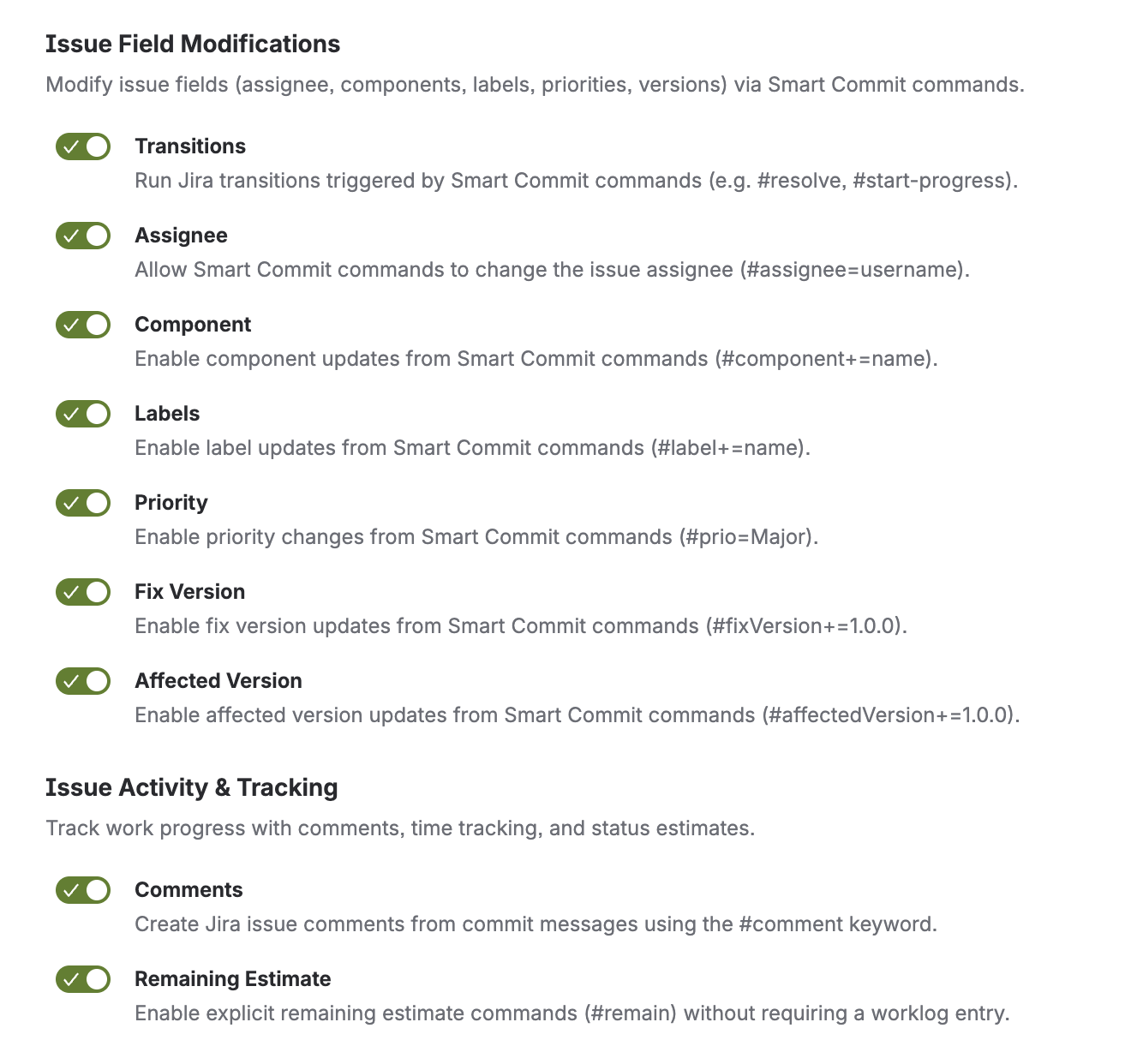
Jira Actions
Each action can be enabled exclusive. So you can decide which actions you would like to use and which actions you would like to ignore.
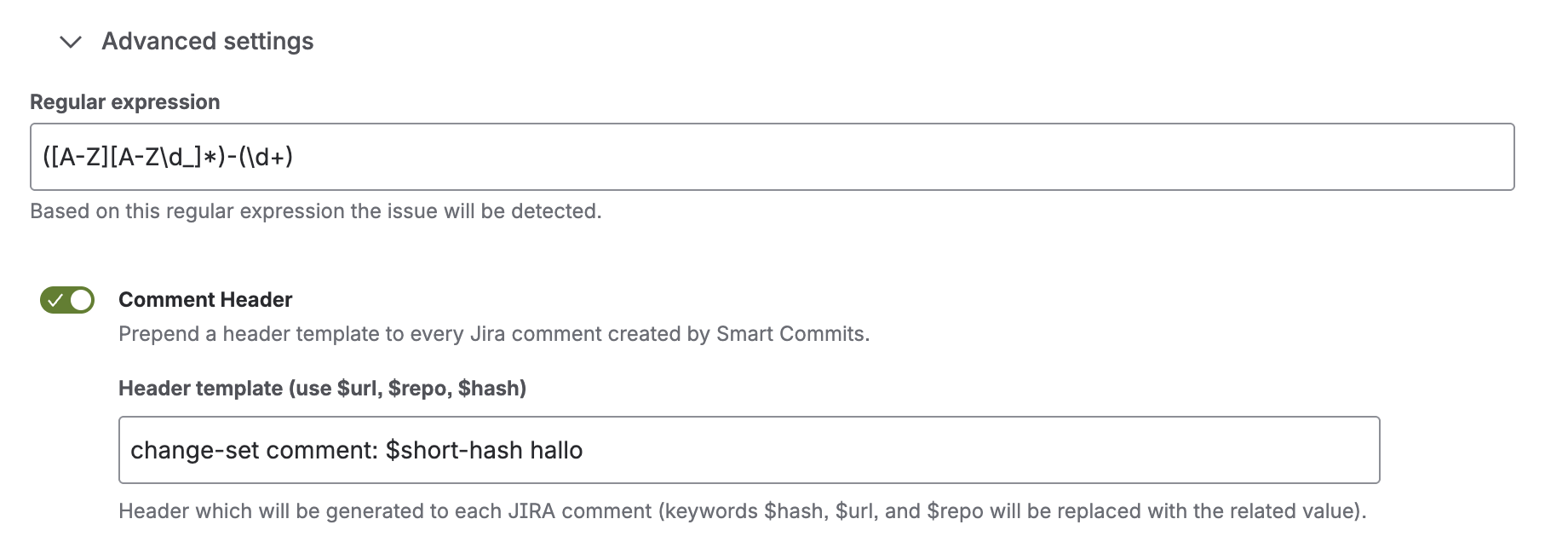
Jira advanced settings
|
Settings |
Description |
|---|---|
|
Issue-key regular expression |
The regular expression how issue keys will be detected. The default will fit in the most cases. But if you have special issue keys, you can modify the regular expression. |
|
Jira Comment Header |
Enable a Jira comment header. This header will be added to each comment in Jira. You can add a link to the commit via the attribute $url, also you can add the repository $repo, the commit hash $hash and the short commit hash $short-hash |
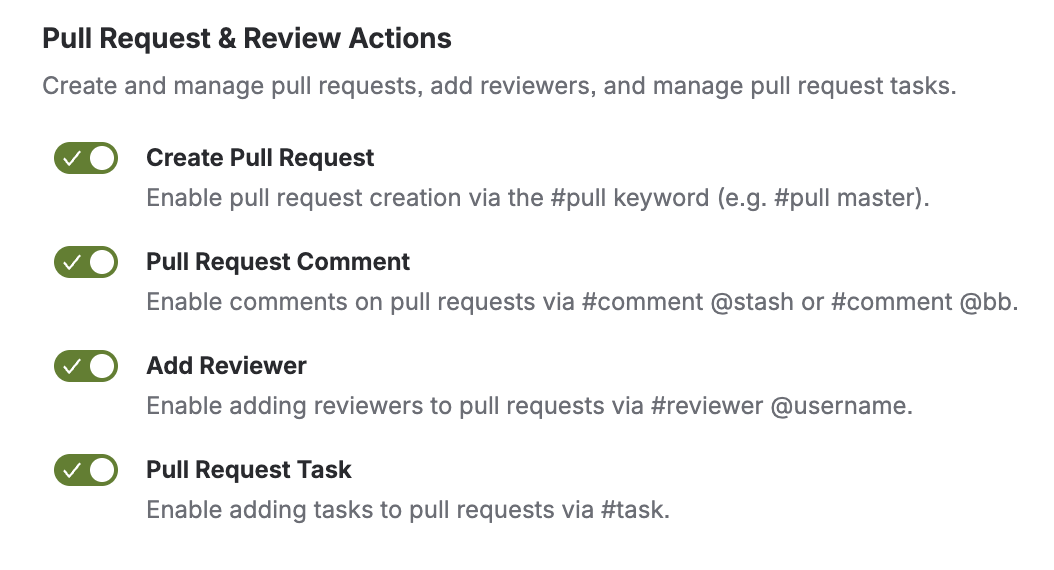
Bitbucket Actions
Jira Connection
All actions regarding Jira will be done via the Jira connections configured in the app settings, with the account of the connection.