

The Process Guardian is the central enforcement component of the system. It evaluates rules during the development workflow and determines whether an action is compliant with the configured requirements. To do this, it processes the relevant triggers, checks whether the defined conditions apply, executes the configured checks, and then returns or communicates the result.
The Process Guardian can, for example, validate commits, pushes, and pull requests, detect compliance violations, and approve or veto pull requests based on the configured rule set. By executing rules and checks at different stages of the development workflow, it serves as the central enforcement engine that applies compliance policies in a consistent, transparent, and auditable manner.
Process Guardian as reviewer
This behavior has an additional benefit. When the Process Guardian adds a veto to a pull request, the merge is not only blocked, it also triggers a notification email to all relevant participants. As a result, the team is informed immediately that the pull request requires attention, which improves visibility and helps resolve compliance issues earlier in the workflow.
Configuration
The configuration defines the global behavior of the Process Guardian. It controls how the Process Guardian identifies Jira issues, how it reacts during rule evaluation, and how it interacts with users during compliance checks. These settings apply across the configured rule set and provide the technical foundation for consistent validation behavior.
The Process Guardian can be configured at the workspace level and at the repository level. This allows central configuration while still supporting repository-specific behavior.
-
Workspace configuration defines the default behavior for all repositories
-
Repository configuration allows overriding the workspace configuration
Where can I find the settings?
-
Workspace Settings → Forge → Jira Hooks for Bitbucket → Process Guardian
-
Repository Settings → Forge → Jira Hooks for Bitbucket → Process Guardian
Options
|
Option name |
Description |
Values |
|---|---|---|
|
Enable Process Guardian |
Enables or disables the Process Guardian for the repository. When disabled, all rule evaluations are bypassed and merge checks automatically pass. |
Enabled / Disabled |
|
Settings inheritance |
Defines whether the repository inherits the Process Guardian settings from the workspace or uses its own configuration. |
Custom/Workspace |
|
Process Guardian reviews pull requests |
Enables the Process Guardian to act as a reviewer on pull requests. Based on the validation result, it can automatically approve a pull request or add a veto. |
Enabled / Disabled |
|
Process Guardian User |
Defines the technical user account that represents the Process Guardian when performing review actions. This user can approve pull requests and request changes. |
Atlassian user account |
|
Enable local git hook check |
Enables the Validation API for external systems such as local git hooks, CI/CD pipelines, or custom integrations. This allows commits and branches to be validated before they are pushed to Bitbucket. |
Enabled / Disabled |
|
Validation API endpoint |
Displays the generated endpoint that can be used by git hooks, CI/CD systems, and external tools to execute validations. A token can be regenerated if necessary. |
Repository endpointWorkspace endpoint |
|
Escape character |
Defines a prefix that causes a detected issue key to be ignored during validation. For example, !ABC-123 will not be evaluated. |
Character or string prefix, for example !Issue key regular expression |
|
Issue key regular expression |
Defines the regular expression used to detect Jira issue keys in commits, branches, pull requests, and other supported content. |
Regex pattern, for example [A-Z]+-\\d+ |
User interface
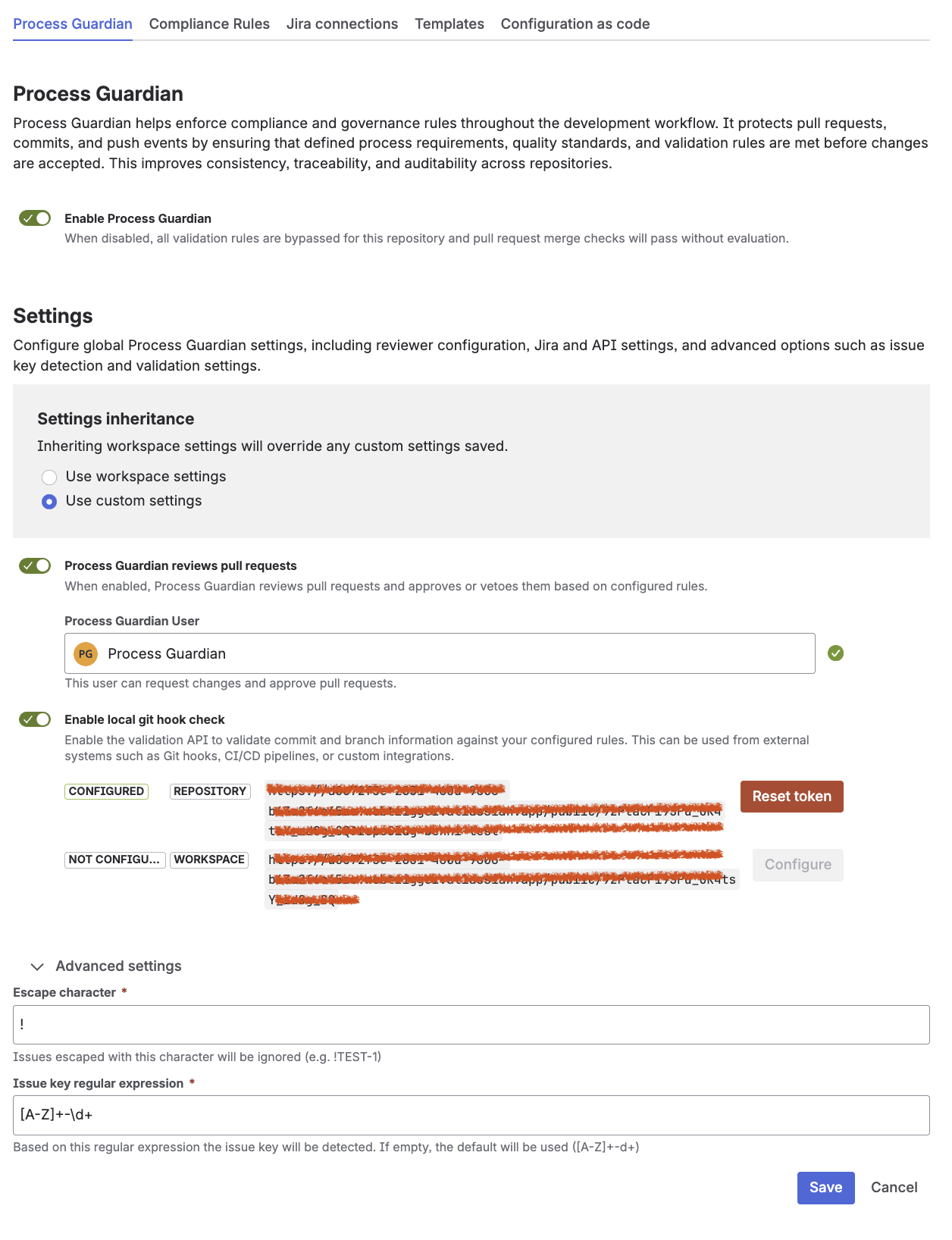
The following screenshot shows how to configure the Process Guardian settings
Key takeaway
The Process Guardian settings defines the global runtime behavior of the Process Guardian and controls how validation, issue key detection, and review actions are handled.
Next steps
Configure the Jira connections: Set up the connection to Jira using a technical user and a personal API token to enable issue validation and JQL-based checks.